
App2Web
Link U.S. customers from iOS paywalls to Safari for Stripe checkout.
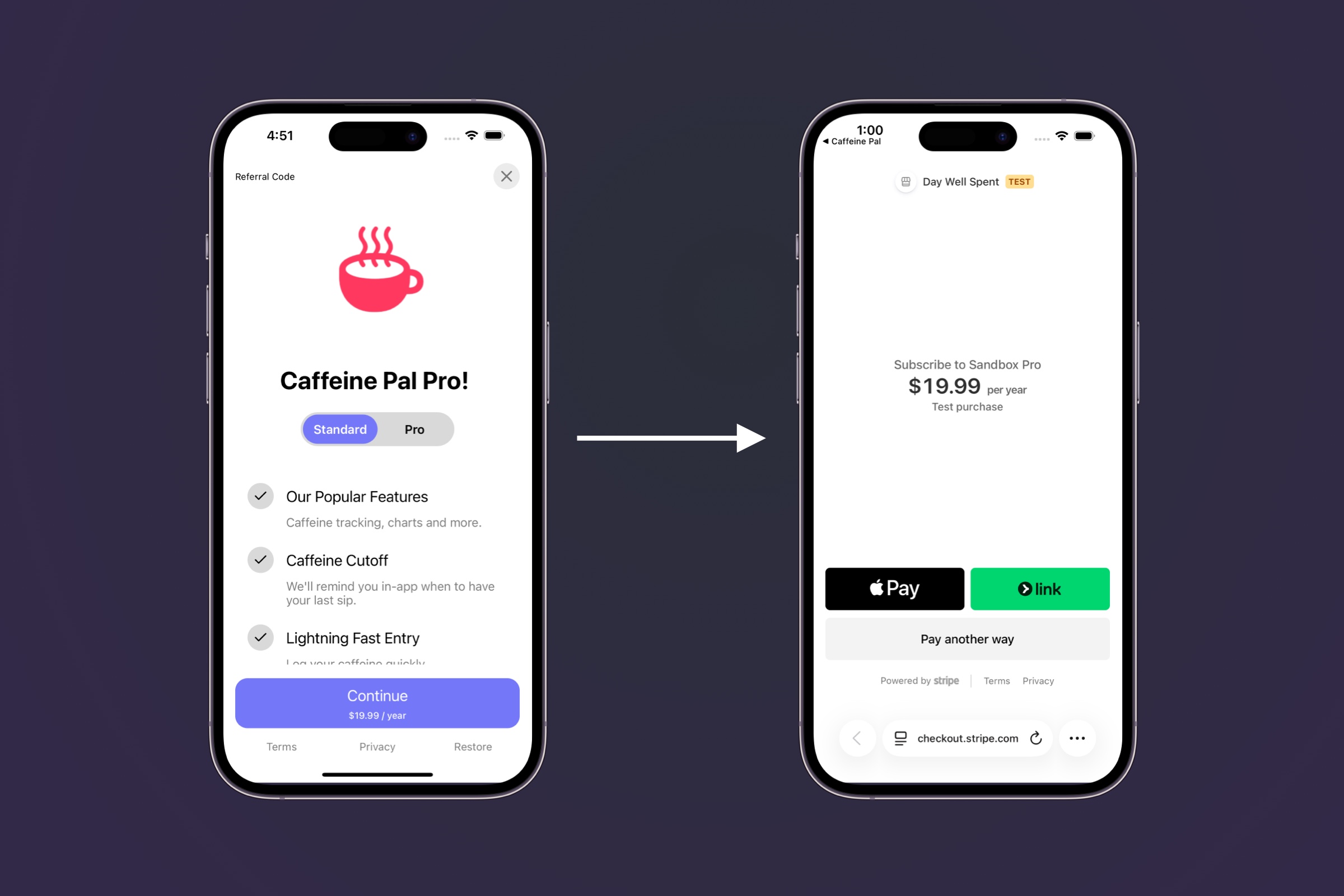
For customers on the United States App Store storefront, you can add calls to action in your iOS paywalls that open Stripe checkout outside of your app in Safari or the user's default browser.
Do not present Stripe Checkout inside your iOS app using an in-app browser, SFSafariViewController, WKWebView, or another embedded web view. For external purchase links, the checkout flow should leave the app and open in the external browser.
Apple's App Review Guidelines allow United States storefront apps to include buttons, external links, or calls to action for purchase methods other than in-app purchase. Review Guideline 3.1.1(a) before submitting your app.
- 1
Configure Web Checkout
First, follow the web checkout setup guide to create a Stripe app and configure your web checkout settings. Specifically, you'll need to complete the first three steps. This includes installing the Superwall Stripe app and setting up your app's settings.
- 2
Add a Stripe product to an iOS paywall
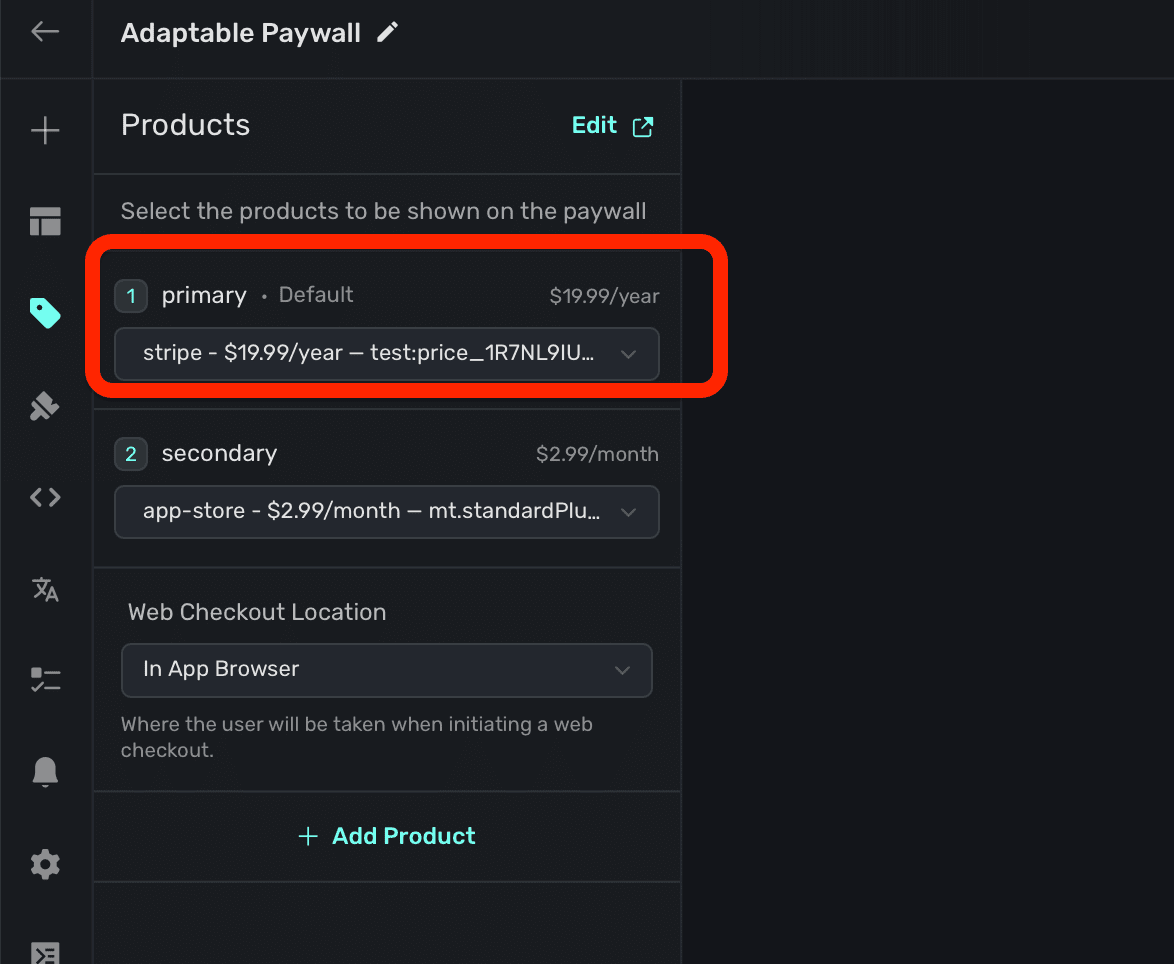
Select a paywall and add a Stripe product to it. This lets users start an external browser checkout flow from the paywall. Stripe products are prepended with "stripe" in the product selector:
- 3
Create a campaign for U.S. customers
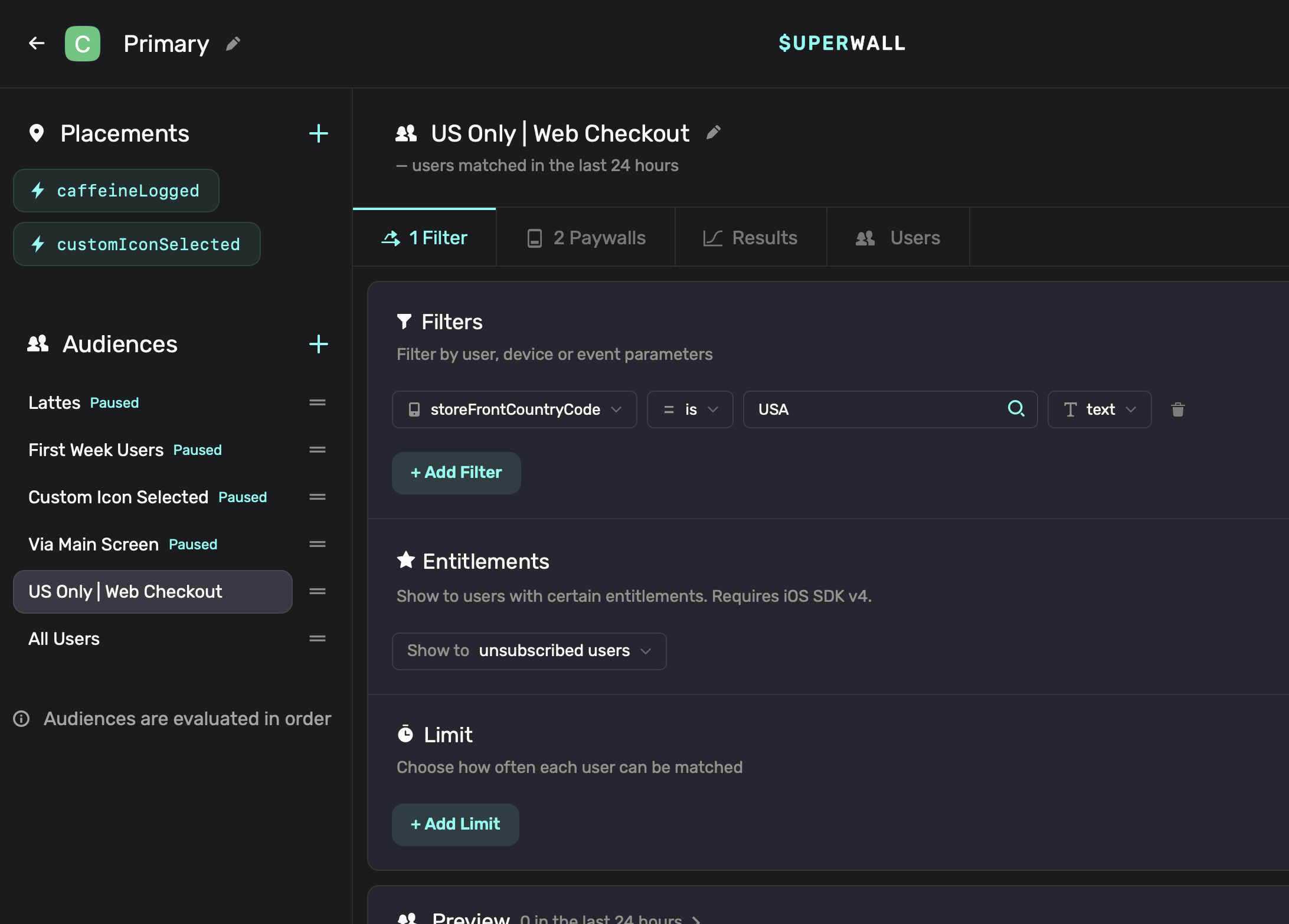
Since the policy applies to customers on the United States storefront, create a campaign filter that matches those customers. Use
storeFrontCountryCodeequalsUSA, like this:For App Review, explain that U.S. storefront customers can tap a paywall call to action that opens an external browser for Stripe checkout. Non-U.S. storefront customers should continue using Apple in-app purchase unless another regional policy applies.
- 4
Respond to Checkout
From there, the flow works the same way as web checkout. Once the payment succeeds in the external browser, the Superwall delegate functions
willRedeemLink()anddidRedeemLink(result:)will be called when the user returns through the deep link. You can use these functions to show any specific UI as described in our Post-Checkout Redirecting docs.Additionally, entitlement and subscription status will update automatically. For lifetime one-time products, the linked entitlement becomes active without an expiration. For consumables, inspect
CustomerInfo.nonSubscriptionsand grant the purchased quantity in your own system. If you're using aPurchaseController, refer to the docs here.
If you need to test checkout, learn how here.
Prefill customer information
When starting checkout from an iOS paywall (App2Web), you can prefill customer information in two ways:
Stripe will automatically prefill the email field if you set the user's email as a User Attribute in your app before initiating checkout.
Stripe Customer ID
If you already have a Stripe customer ID for your user, you can set it as the stripe_customer_id user attribute. This will associate the checkout session with the existing Stripe customer, automatically prefilling their saved information and payment methods:
Superwall.shared.setUserAttributes([
    "email": user.email,
    "stripe_customer_id": user.stripeCustomerId
])
When both stripe_customer_id and email are provided, the Stripe customer ID takes precedence. The checkout session will use the existing customer's information rather than creating a new customer.
How is this guide?